
Start with an inventory of where records live today
Before anything moves, list every place your team looks for information about an animal. For most pet stores that list is longer than expected:
- Another system your team logs in to, such as PetKey.
- One or more spreadsheets for arrivals, prices, breeders or vaccinations.
- Paper folders with signed sale paperwork, health exams and registration documents.
- Pet data from your PetXchange or Dog On Web files.
- Notes on cage cards, whiteboards or a notebook behind the counter.
For each source, write down who updates it, how current it is, and whether anyone still relies on it. This list becomes your plan: some sources move, some stay available for reference, and some can be retired.
What happens to your PetKey history
Our support article on this topic, written in October 2023, notes that PetKey did not offer an export feature. Stores that adopted UKM could still log in to PetKey to view their historical data, so past records remained accessible after the switch.
UKM performs data transfers for stores coming from PetKey and from Dog On Web. The Dog On Web transfer works the same way as the PetKey transfer, and UKM needs the store’s Dog On Web username and password to perform it. The details of any transfer, including what moves and in which format, are confirmed with you during onboarding. We do not quote timeframes or import services until we understand your situation.
Keep your old login
Do not close an old account until you have confirmed what moved and how you will reach anything that did not. Keeping read access to historical records is often the simplest way to answer a customer question about an animal sold years ago.
Decide what moves and what stays
Not every record needs to move on day one. Most stores get the most value from moving the animals currently in their care first, then deciding how much history is worth bringing across. The table below shows where each kind of information lives in UKM.
| Information | Where it lives in UKM | Suggested approach |
|---|---|---|
| Animals in the store now | The pet record: breed, microchip, sex, color, prices, status and photo | Move first, and check every record before go live |
| Vaccines and dewormings | Treatments, set up in Treatment Settings, with bulk add by acquired date or birth date | Set up your treatment list first, then record treatments for current animals |
| Signed paperwork and certificates | The Documents tab on each pet (PDF, DOC, DOCX, JPG, PNG), each set public or private | Upload for current animals; keep older files where they are unless you need them |
| Breeders and vendors | Breeder profiles, with USDA numbers where the breeder has one | Standardize names and numbers before moving to avoid duplicates |
| Staff notes | Internal notes (staff only) and public notes (customer facing) on puppy and breeder profiles | Decide which notes are internal before you move them |
| Animals sold years ago | Your previous system, if you keep access to it | Agree on this during onboarding |
Clean your spreadsheet before you move it
Spreadsheets built up over years tend to collect small inconsistencies. Fixing them once, before the move, is far easier than fixing them record by record afterward.
One row per animal, one column per field
Split combined columns such as “Breed and color” into separate columns. Remove merged cells, subtotals and blank spacer rows.
Format microchip numbers as text
Spreadsheet programs can display long numbers in scientific notation or drop leading zeros. Format the microchip column as text, then spot check a few numbers against the chip paperwork.
Use one spelling for each breed
“Cavapoo”, “Cava-poo” and “Cavalier Poodle mix” become three different values. Pick one name per breed so search, filters and breed categories work as expected.
Standardize breeders and USDA numbers
The same breeder entered two ways creates duplicate records. UKM may associate a breeder name with a USDA number used previously to avoid duplicates, but some breeders and vendors have no USDA number, so consistent names matter.
Use one date format
Birth dates and acquired dates should use a single format in every row.
Map your statuses
Translate the words you use today into UKM statuses such as Pending, Coming Soon, Available and Reserved.
Collect a photo and a price for each animal
A price and a photo are required when pets come in through UKM’s PetXchange and Dog On Web sync, so it helps to gather current photos and prices with the rest of the data.
Whether a spreadsheet can be brought in directly, and in what format, is confirmed during onboarding. Clean data helps either way.
If your pets arrive through PetXchange or Dog On Web
If your store works with PetXchange or Dog On Web, UKM’s Sync screen (Admin, then Unified KM, then Sync) imports pets from those data sources into your store, which can cover new arrivals going forward without retyping. We confirm in a demo how it fits your setup.
- Preview (recommended) lets you review, edit, accept or decline each pet before import. Quick Sync imports all pets in a file at once with default settings.
- Before import you can edit breed, microchip, sex, color, regular and sale price, status, pet name, acquired date and photo.
- To import, each pet needs at least one price, a pet name, an acquired date and a photo. Missing fields are highlighted in red.
- Declined pets are excluded from future syncs of that file until you restore them.
The full walkthrough is on the PetXchange and Dog On Web sync page.
Check the records after the move
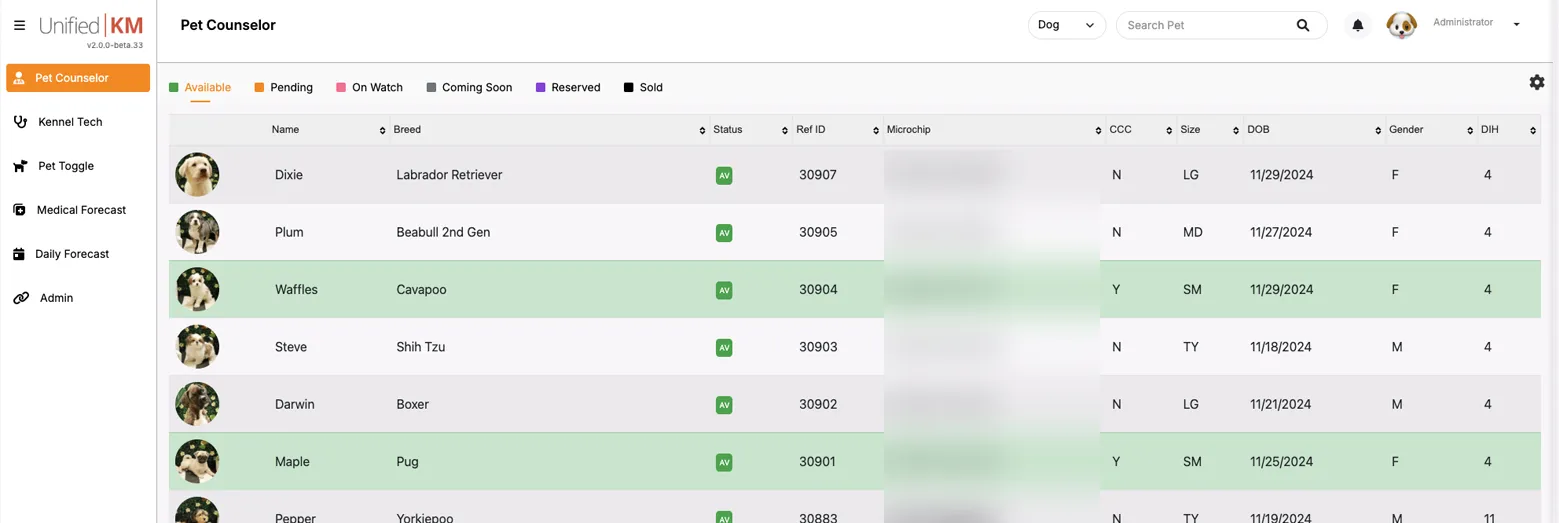
Once records are in UKM, set aside time to check them before staff and customers rely on them.
- Count the animals in each status and compare with your old list.
- Open a sample of records and compare breed, microchip, sex, color and dates with the source.
- Set sizes (toy, small, medium, large, giant) before publishing, since size drives mandatory add-ons and the final price. Sizes can be bulk edited from the products page.
- Look for duplicate breeders created by different spellings or missing USDA numbers.
- Check that each document is set to public or private as intended.
- After status changes, clear caches and check the available pets page on your website.
Running two systems for a short time
Most moves include a period when the old system is still open. Set a cutover date after which every new arrival, treatment and sale is recorded only in UKM. Before that date, avoid entering the same animal in both places, because the copies will drift apart. After it, use the old system for reference only.
Tell your team which questions go where: “Is this puppy available today?” is answered in UKM. “What paperwork went home with a puppy sold two years ago?” may still be answered in the old system.
What UKM does not do
- UKM is not a full point of sale, payment or accounting system. Those tools stay in place.
- We do not promise timeframes or import services before we understand your records and workflows.
- UKM stores microchip and breed registration information. Registry submissions are not claimed.
Frequently asked questions
Will I lose access to my old PetKey records?
Our October 2023 support article notes that stores can still log in to PetKey to view historical data after adopting UKM, so past records remain accessible there. Confirm your own account access with PetKey before closing anything.
Can you move my records from PetKey or Dog On Web?
UKM performs data transfers for stores coming from PetKey and from Dog On Web. For a Dog On Web transfer, UKM needs the store’s Dog On Web username and password. The details are confirmed during onboarding.
Can I bring in my spreadsheet?
Tell us what your spreadsheet contains and we will confirm the approach during onboarding. Cleaning it first, as described above, makes any approach faster.
How long does a move take?
It depends on your records, locations and workflows. We plan it with you after reviewing fit and do not quote timeframes before then.
What about signed paperwork and certificates?
Each pet has a Documents tab that accepts PDF, DOC, DOCX, JPG and PNG files, and each document can be set to public or private.
Related pages
Planning a move? Request a demo and bring a sample of your current records, and we will talk through what moves and what stays.