
Who this is for
This page is for pet stores that already use PetXchange, which describes itself as a recordkeeping and compliance application for pet professionals, or Dog On Web, which describes itself as software for kennel records, medical records, registrations and USDA forms. Unified KM does not replace either one. It turns the pet data you already have there into the records your staff use every day.
The sync lives in UKM Admin, the portal for managers, general managers and owners. UKM Admin is meant for a computer browser on a Mac, PC or laptop, not a tablet. If you are new to Unified KM, we confirm in a demo how the sync fits your PetXchange or Dog On Web setup.
How the sync works
In UKM Admin, go to Unified KM, then Sync. The Available Files table lists the files from your data sources, with the source, the file name, the number of pets and the total cost for each file. Pick a file, then choose how you want to bring its pets in.
Every pet in Unified KM is treated as an individual product, so a synced pet gets the same status, price, photo, notes and document tools as any other pet.
For a Dog On Web data transfer, the Unified KM team needs your store’s Dog On Web username and password.
Preview or Quick Sync
Preview (recommended)
Preview lets you look at every pet in a file before anything is imported. You can edit a pet’s details, then accept or decline it, one at a time or in bulk. Live counts of Pending, Accepted and Declined pets show how far through the file you are.
Quick Sync
Quick Sync imports all pets in a file at once with default settings, with an optional acquired date applied to every pet. It is faster, but skips correcting each pet.
| Question | Preview | Quick Sync |
|---|---|---|
| How pets come in | You review each pet before import | All pets in the file at once |
| Edit details first | Yes, per pet | No, default settings are used |
| Accept or decline | Per pet or in bulk | Not part of Quick Sync |
| Acquired date | Set per pet | One optional date for the whole file |
| Best for | Most files, especially new shipments | Files you have already checked |
What you can review and edit before import
In Preview you can check and change these details for each pet:
- Breed, microchip number, sex and color
- Regular price and sale price
- Status: Pending, Available, Coming Soon or Reserved
- Pet name, with an auto-name button when you need one quickly
- Acquired date
- Photo, in JPEG, PNG, GIF or WebP format, saved to your media library
You can search and filter the list by breed, microchip number, coloration or pet name.
Fields required to import
A pet can be imported only when it has all four of these:
- At least one price
- A pet name
- An acquired date
- A photo
Missing fields are highlighted in red.
Declined pets
A declined pet is left out of future syncs of that file until you restore it, so it does not keep reappearing.
Manage Declined Pets shows each declined pet’s microchip, breed and source, the reason it was declined, who declined it and when. If a pet was declined by mistake, restore it there and it comes back into the file.
What happens when you import
Importing creates new pet records or updates existing ones. A summary then shows how many pets were imported, updated, unchanged or had errors. When you are finished with a file, you can archive it. Archiving moves the file to a processed folder. It does not delete it.
Checks to run after a sync
Set sizes and add-ons
Sizes (toy, small, medium, large and giant) drive mandatory add-ons, such as training or housebreaking kits, and so the final price. Bulk edit sizes from the products page before you publish.
Check prices
If prices need adjusting, use Bulk Options, then Bulk Price Edits, in UKM Admin. Price changes show on your website immediately.
Move pets to Coming Soon before the vet exam
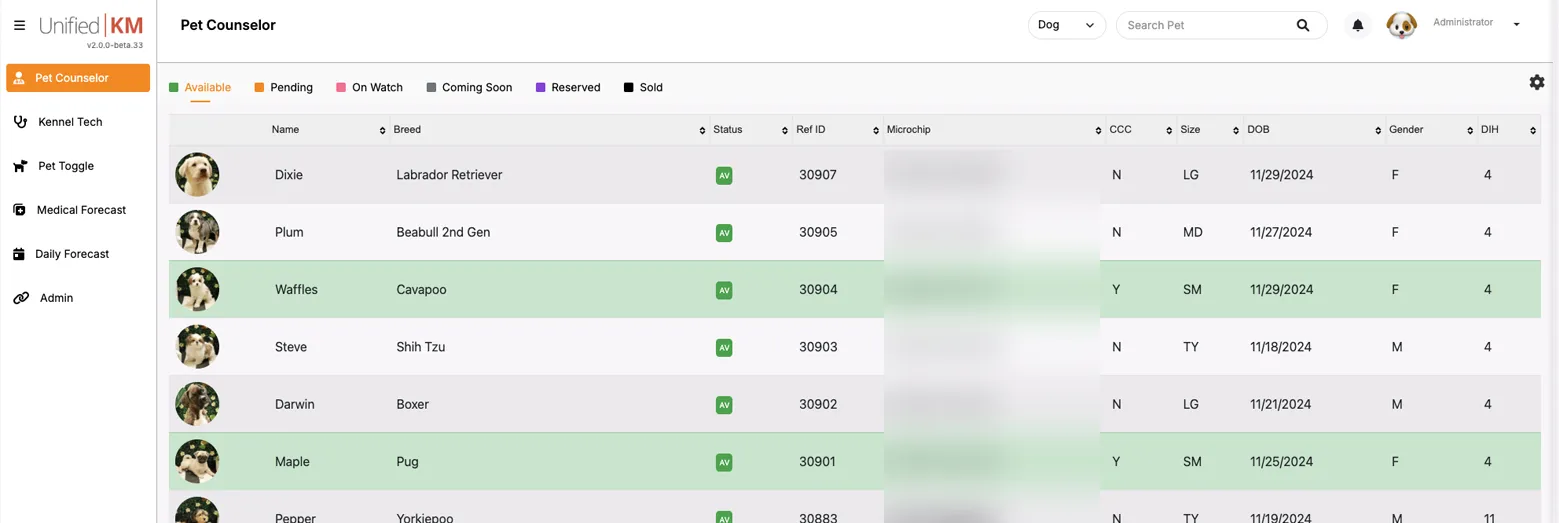
New arrivals usually start as Pending. The night before the veterinary exam, bulk select those pets, change their status to Coming Soon and update.
Clear caches and verify
After a status change, clear caches, then open the available pets page on your website to confirm the pets look the way you expect.
Troubleshooting
A pet will not import
Look for fields highlighted in red and fill them in Preview. If a whole file is short on photos or prices, use Preview rather than Quick Sync.
A breed shows up in the wrong place
Check the breed on the pet in Preview and correct it before you import. If the pet is already imported, edit the breed on its record from Products, then clear caches and check your available pets page.
The same breeder appears twice
After a transfer, UKM may associate a breeder name with a USDA number used previously, to avoid duplicate breeder records. Some breeders and vendors do not have a USDA number and add their information on Dog On Web and PetXchange, so their details can look different from breeders that do. If two profiles look like the same breeder, compare the USDA number on each before you edit either one.
Moving from a spreadsheet?
If you track arrivals in a spreadsheet today, the sync can take over the retyping for pets that come through PetXchange or Dog On Web. For pets and history that live only in your spreadsheet, plan how those records come into UKM with us during onboarding.
Questions
How often does the sync run?
You decide when pets are imported. Files appear in the Available Files table in UKM Admin, and nothing is imported until you run Preview or Quick Sync. We confirm how new files reach your account during setup.
Do I still need PetXchange or Dog On Web?
Yes. Unified KM reads the pet data from those services. It does not replace them. See Does Unified KM replace PetXchange? for how the two fit together.
What if I decline a pet by mistake?
Open Manage Declined Pets, find the pet by microchip or breed, and restore it. It then comes back into that file for the next sync.
Will importing a file again create duplicate pets?
Importing creates new records or updates existing ones, and the summary shows how many pets were updated or unchanged. Check the summary after each import so you know what changed.
Want to see the sync and the after-sync checks with your team? Request a demo and tell us whether you use PetXchange, Dog On Web or both.
Sources
- thepetXchange home page, accessed November 3, 2026
- About DogOnWeb.com, accessed November 3, 2026